 Huba
HubaUser Interface
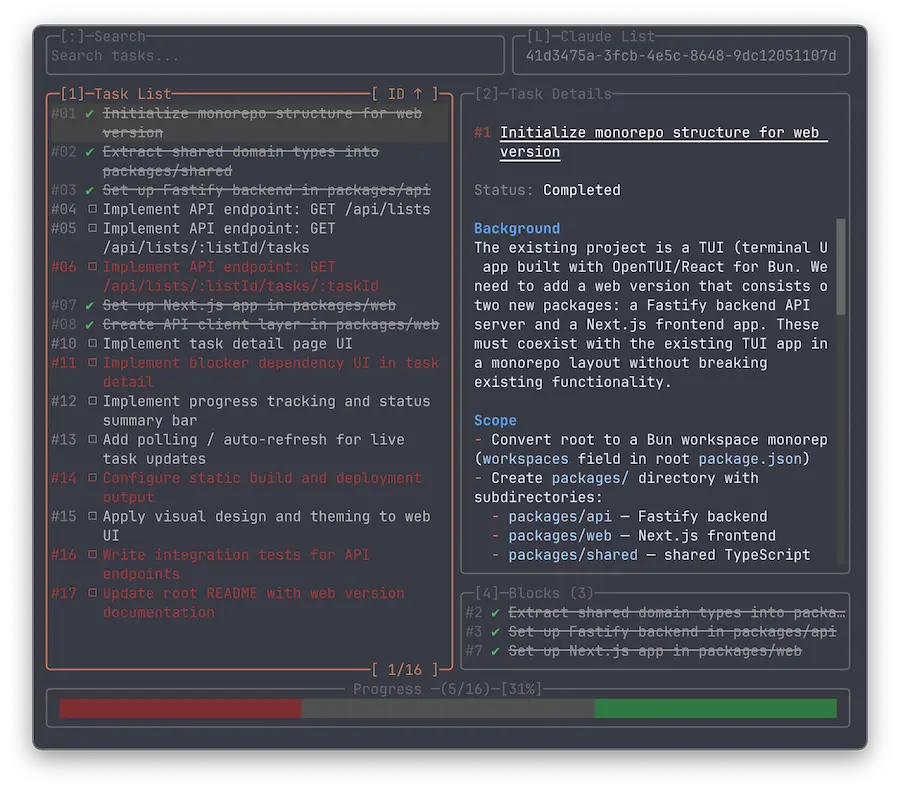
Overview of Huba's layout and panels.
Layout Overview
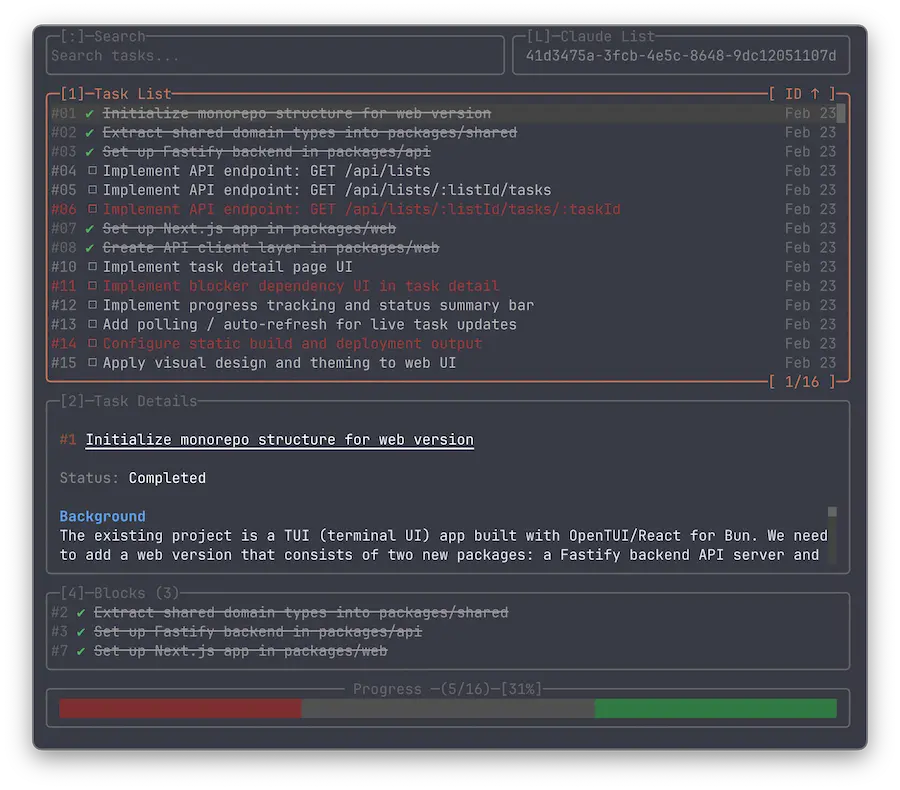
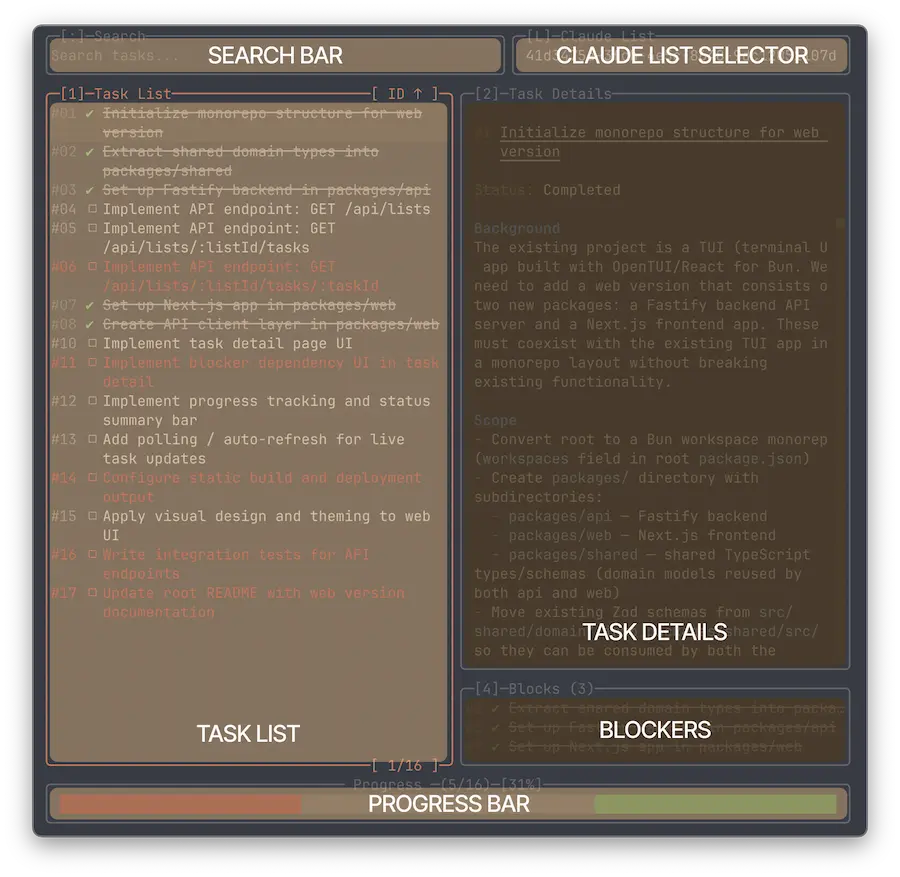
Huba's interface consists of several panels:
- Search Bar — Full-text search input for filtering tasks
- Claude List Selector — Switches between task lists
- Task List — Main table displaying all tasks with their ID, subject, status, and last updated date
- Task Details — Selected task's description rendered as markdown
- Blocked By / Blocks — Dependency panels showing task relationships
- Progress Bar — Completion count and percentage visualization
Panels
Each panel can be focused using its number key:
| Panel | Key | Description |
|---|---|---|
| Task List | 1 | Main task table with all tasks |
| Task Details | 2 | Selected task's description (markdown) |
| Blocked By | 3 | Tasks blocking the selected task |
| Blocks | 4 | Tasks the selected task blocks |
| Search | : | Full-text search input |
| Claude List | L | Current task list selector |
Task List
The main panel showing all tasks in a table. Displays task ID, subject, status, and last updated date. Supports sorting and filtering.
Task Details
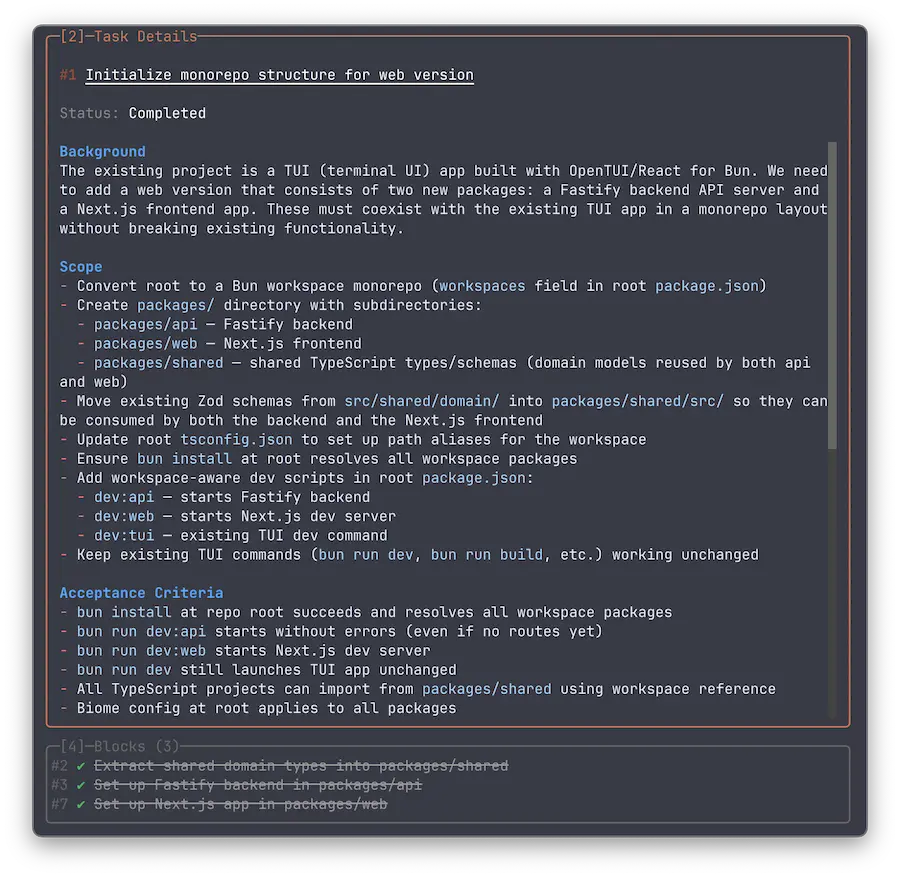
Shows the selected task's description rendered as markdown in a scrollable area. Toggle visibility with / or Space.
Blocked By & Blocks
Dependency panels appear below Task Details when the selected task has relationships. Max 8 rows each. Selecting a dependency navigates to that task.
Search Bar
Labeled [:]. Provides real-time full-text filtering across task subject and description. Global hotkeys are disabled while typing.
Progress Bar
Shows completion count and percentage with a colored status bar. Toggle with p. Hidden when terminal height is 35 rows or less.
Layout Modes
Horizontal (default)
Task table and details panel are displayed side by side.
Vertical
Task table above, details panel below. Toggle with h.